
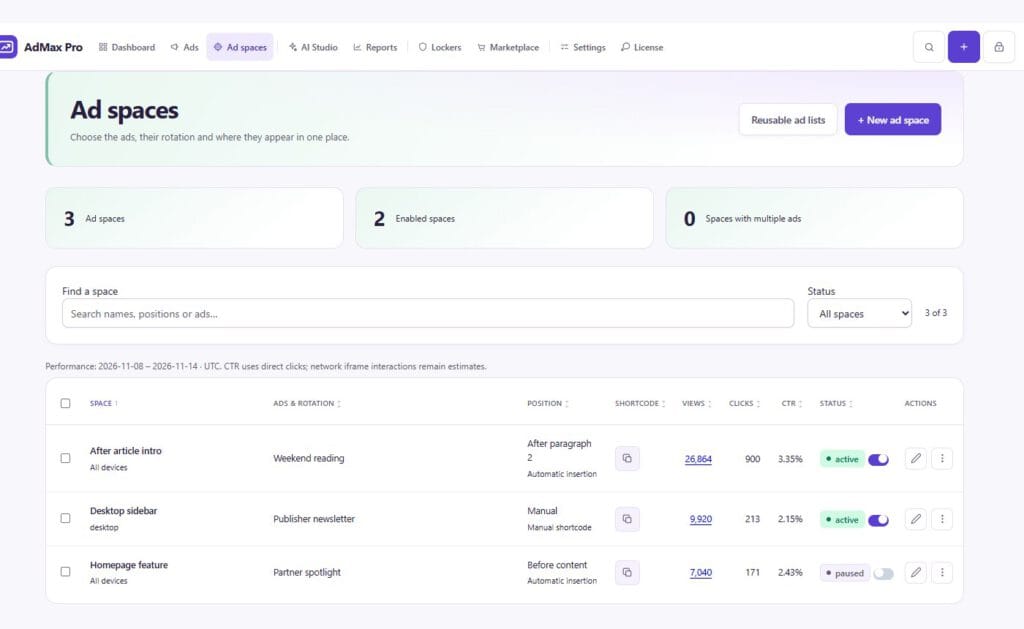
You can place ads inside WordPress posts with a shortcode or an automatic placement. In AdMax Pro, use manual insertion to choose the exact spot in a single article. Use an automatic ad space when the same placement rule should apply to several posts.
Create one test ad
Set up a test creative before choosing the placement. Use an image or another ad format supported by the plugin, add the intended destination URL and give the creative a clear name. If you are testing another network’s snippet, use its approved setup and confirm the rules for previewing or clicking it.
Choose one published article as your test page. A familiar page makes it easier to see where the ad lands and whether it interrupts the reading flow. Start with a single placement and check it as a regular visitor.
Place an ad manually in one post
- In AdMax Pro, open the creative or the ad space you intend to use.
- Copy the shortcode displayed by AdMax Pro. A space shortcode can preserve the space’s rules and reporting identity.
- Open the WordPress post, insert a Shortcode block between two suitable sections, and paste the exact shortcode.
- Preview the post. Check that the ad appears at the intended location, that the link goes to the advertised page, and that the creative fits on mobile.
- After saving, check the published view in a clean visitor session. If your theme or server caches the page, use its normal refresh process when a change fails to appear.
A good first placement is usually between complete sections, where readers can tell the ad apart from article content. The AdMax Pro ad creation guide shows the manual and automatic insertion controls.
Reuse a placement across several posts
Use an automatic Ad space when you want a repeatable position such as before content or after a paragraph. Connect an active creative or rotation and set the audience rules. Test a short article and a longer one. A post that has fewer paragraphs than your rule expects can behave differently.
If you combine a manual block and an automatic rule on the same test page, preview both placements and check whether they are supposed to appear together. The Ad spaces guide explains previewing, targeting and delivery.
Why is an ad missing for some visitors?
Check whether the space and creative are active, whether the schedule matches, and whether the page and device meet the targeting rules. Review consent and third-party script requirements where relevant. Use the placement preview to see which condition is affecting delivery, then verify the published page on desktop and mobile.
If a test ad appears in the right place, extend the rule to a small group of articles before rolling it out sitewide. Use the WordPress ad reporting guide to check how the placement is counted.