
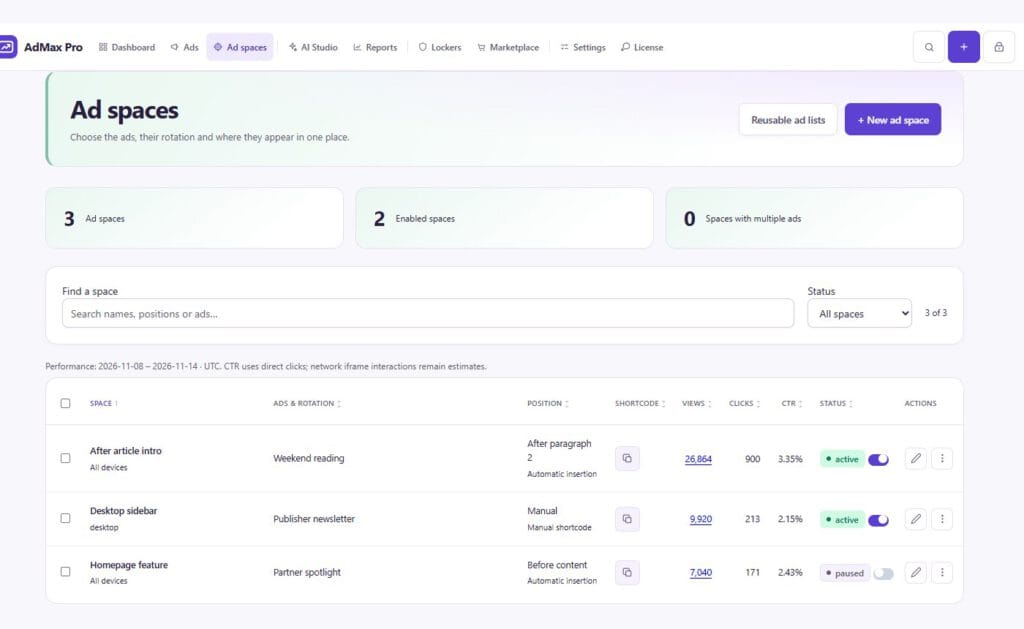
To sell ad space directly on a WordPress website, define a placement, create a package and let the advertiser purchase it through your store. AdMax Pro connects ad packages to WooCommerce checkout. Its ad space selling feature is available on Business, Agency and the active Business trial.
Decide what the advertiser is buying
Start with one placement you can explain. For example, a publisher could offer a box after the second section of a category’s long-form posts. Define where it appears, the suggested creative dimensions, the expected review process and how the package ends. Traffic estimates are more useful when they come from actual reports and include the period measured.
Choose a billing model that fits the placement. Cost per day (CPD) sells a time period. Cost per thousand impressions (CPM) is based on the delivery of views. Cost per click (CPC) is based on eligible clicks under the tracking rules. State the model in plain language so the buyer understands what is included.
Configure the package in WordPress
- Activate WooCommerce and confirm the store currency and intended payment methods. Set the same currency in AdMax Pro.
- Create or select an available Ad space for the package. Start with one placement, one format and a limited audience rule you can verify.
- In Marketplace, create a package for that space. Choose CPC, CPM or CPD, then set the price and quantity. Give the package a title that identifies its location and unit.
- Add the Marketplace purchase and advertiser dashboard blocks through the documented shortcodes. Use the ad space selling guide for the exact shortcode names and setup.
- Open both pages as a visitor. Make sure the purchase page explains the offer and the dashboard is available to the intended account.
Rehearse the advertiser workflow
Use staging and your approved payment test flow. Make a test purchase, submit a sample creative and inspect its moderation status. Confirm where and when the creative appears after the appropriate approval. Check that the advertiser’s reporting view matches the placement purchased and that the package ends when its billing terms are satisfied.
Use a fictional sponsor in screenshots or examples. For instance, a local cycling newsletter could sell a featured slot for seven days and describe the permitted image dimensions and landing URL. Explain that the seven-day interval is for that sample package. It is separate from the trial period for the plugin.
Publish the details the buyer needs
Show the placement location, the creative rules, the billing unit, the price and the review process before checkout. If the package has targeting limits or excluded pages, state them before the buyer commits. A clear offer reduces back-and-forth at moderation time.
What happens when the package is over?
The expected end condition depends on the billing model and the package configuration. Test it on staging and review the advertiser dashboard before selling larger bundles. Use the reporting guide to confirm how the placement’s views and clicks are counted.