
Set up WooCommerce abandoned cart recovery in two parts. Offer help in chat while the shopper is still on your site, then email eligible customers after they leave. UltraChatbot AI provides cart recovery on Pro and higher. Business and Agency include more control over reminder sequences and offers. Check the cart recovery documentation for your plan and setup.
Choose what you want to recover
A shopper can pause for many reasons. They may want to check delivery costs, choose a size or return later. Use an on-site prompt to solve the immediate problem. Use email to bring an eligible shopper back once you have a valid contact route and the consent appropriate to your setup.
Start with a simple test on a staging store. Choose a product that can still be purchased, one reminder and an email inbox you control. Plan what a recovered cart should look like when the shopper returns. This makes it easier to identify a broken link or a changed inventory state.
Set up the on-site prompt
- Open WooCommerce → Cart & recovery in UltraChatbot and find the Inside the site controls.
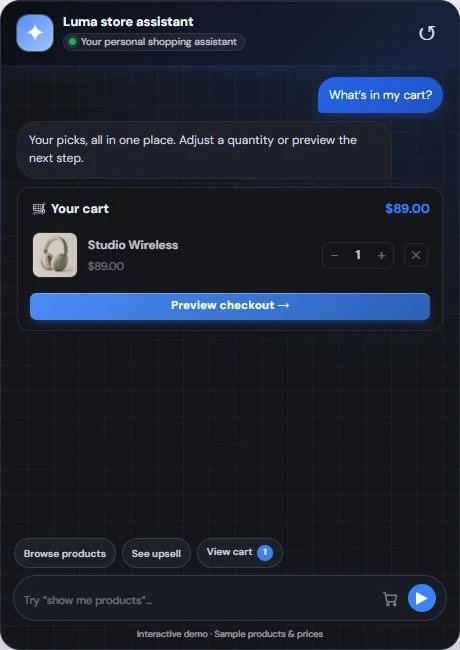
- Decide when to offer help and use a short message that invites a question. “Need help choosing a size or checking delivery?” gives the shopper something concrete to ask.
- Preview the message on mobile and check that it stays out of the way during checkout.
- Test an anonymous cart. A chat invitation can appear without an email address under the conditions you configure.
An anonymous cart and an email-eligible cart are different states. Review the cart and checkout workflow if the cart itself is not following the store’s expected pricing or variation rules.
Configure and test email follow-up
Enable recovery for eligible customers and review the contact-capture and consent controls. Set a first reminder delay that fits the products you sell. On plans with offer editing, use a real eligible WooCommerce coupon when you want to include an offer, and test it against the intended cart. Start without an incentive if the store has no approved offer.
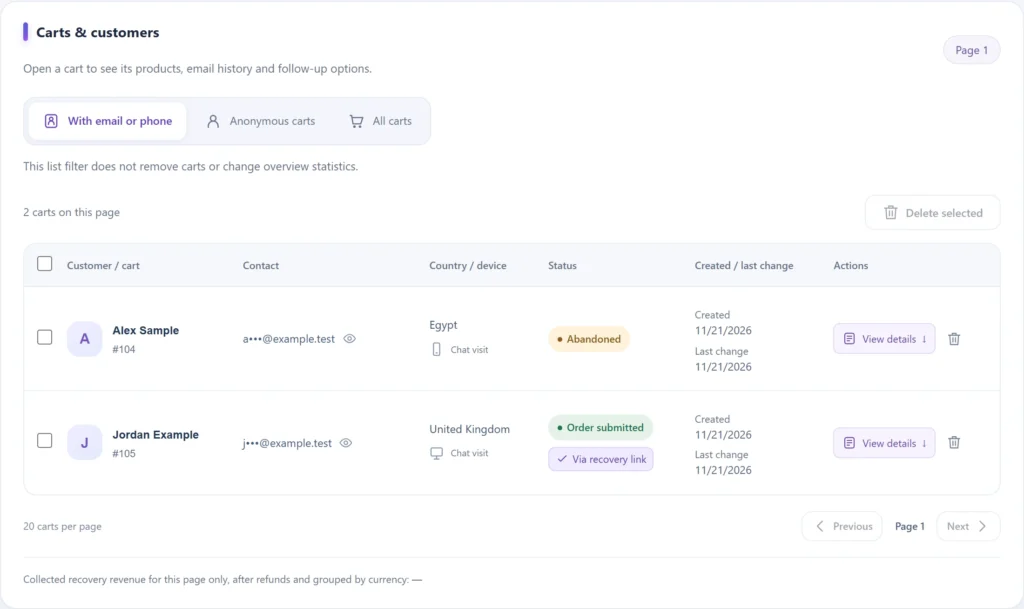
Confirm that WordPress email delivery and Action Scheduler work. Create a cart with test contact details, leave the test session, and inspect its status under Cart recovery → Carts & customers. Check the received message in the test inbox and open the recovery link. Compare the recovered cart’s items, variations and current totals with WooCommerce.
Verify that follow-up stops appropriately
Run one test where the shopper completes the staged checkout before the message is due, and another where the test recipient unsubscribes if the email flow provides that action. Inspect the cart and email history afterward. A scheduled reminder, a delivered message and a recovered order are separate outcomes. Report them separately when you review performance.
Check the case where an item goes out of stock or an offer expires between the first visit and the return. The visitor needs the current store state, even when the cart link still opens.
Why would a recovery email fail to arrive?
First check the shopper’s eligibility and whether the message was scheduled. Then check Action Scheduler, WordPress mail delivery and the test inbox. A message shown as scheduled in the plugin still has to be processed and delivered.
Explore UltraChatbot AI · Improve the answers shoppers get before checkout