
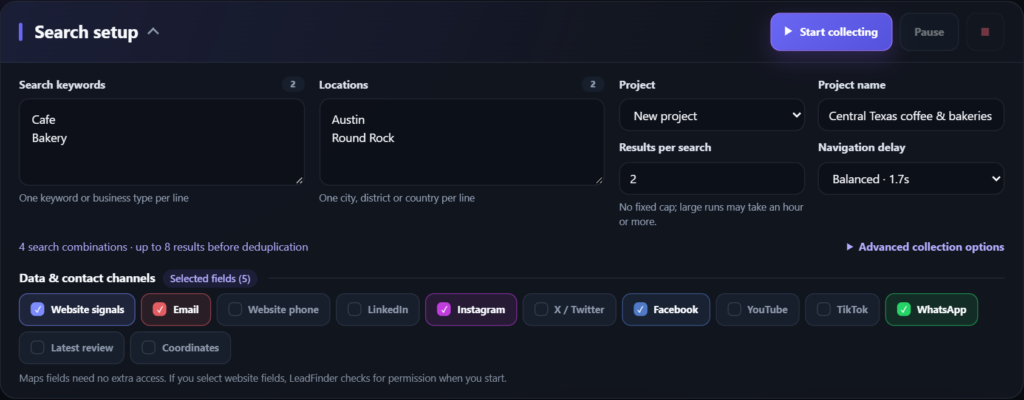
Google Maps can help you build a local prospect list by industry and location. Start with one type of business in one city, collect a small batch of listings, and verify that each business actually fits your offer. LeadFinder is a Google Chrome extension that keeps those searches, business records and follow-up notes in one project.
Decide who belongs on the list
Write a one-sentence rule before searching. A web design team might look for independent dental practices in Austin that have a public office website and a clear contact route. A supplier might look for independent coffee shops in a specific delivery area. The test for a useful lead depends on what you sell.
Pick one city and a phrase a real customer would search for. In the dental example, start with “dentist” and then try “family dentist” as a separate pass. Houston would be a separate location. Two phrases for the same area can return overlapping listings, so use the second pass to fill gaps and review duplicate offices.
Run a small search in LeadFinder
- Open LeadFinder in Chrome, create a project, then add your first keyword and location. Keep a name that will make sense when you reopen it, such as “Austin dental prospects”.
- Choose the contact fields you need. Start with the business name, Maps listing, website and public office phone. Add optional website fields only when they help you qualify the results.
- Run a first pass and review the directory. If you want to check a specific neighborhood, use Manual mode and the on-screen area collection control. Auto mode moves through the map for you.
- Review the first group of results before expanding the search. A small sample lets you catch the wrong niche or location early.
The LeadFinder first-search guide shows the exact controls. The contact-fields guide explains which contact and social signals can be collected when a business publishes them.
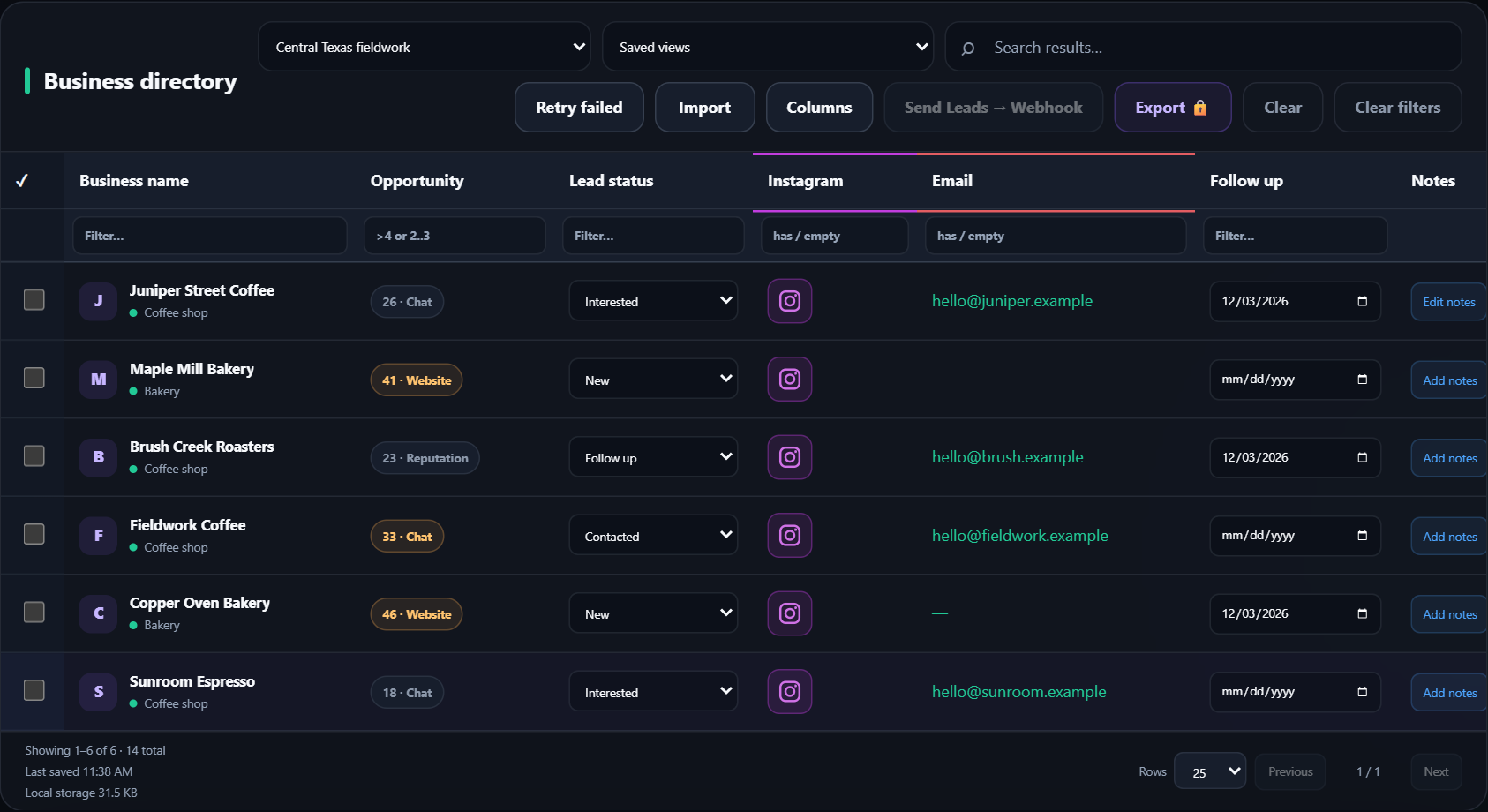
Verify the business and the contact route
Open the Maps profile and the official business site. Check the street address, whether the office appears to be operating, and the public contact route the business provides. If a chain has several branches, decide whether you are contacting each location or one central office. Keep separate records when those offices are separate prospects.
A blank email field means you have no verified email in that row. The business may prefer a contact form or office phone. Record the published route you found and leave the field blank when you are unsure. If a listing and website disagree, mark the record for review.
Keep a reason to follow up
A directory entry becomes a prospect when it has a reason to be there. Write one specific note, such as “The office site lists a contact form and says it accepts new patients.” Record the source and choose a status that distinguishes research from follow-up. Use public business contact routes and respect requests to stop contact.
Before you expand to another city, check that each shortlisted record has a location, a verified public contact route and a note explaining the fit. For a handoff to a teammate, follow the Google Maps lead list export workflow.
How many listings can you find?
Coverage depends on the search phrase, location, map area and what Google Maps loads. Public contact details also vary by business. Treat the results as a starting list and use a second pass or a manual area check when an important neighborhood is missing.