
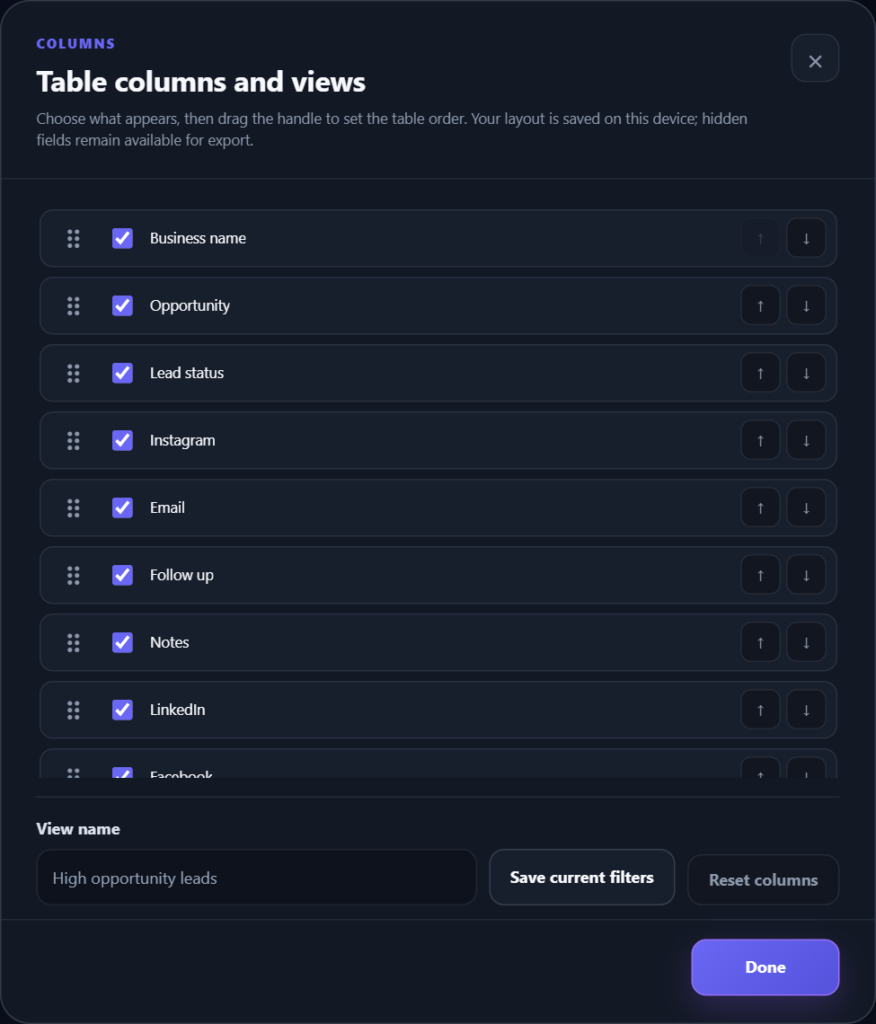
A useful Google Maps CSV has one row per prospect you intend to contact, clear source links and only the fields your team needs. In LeadFinder, review your directory, qualify the records, and use its export controls to save CSV for a spreadsheet or CRM.
Decide what the export is for
A handoff to a salesperson needs business names, locations, public contact routes and follow-up notes. A research file can include additional source and opportunity fields. Save a separate backup of the whole LeadFinder project if you want to move or restore the project in another Chrome profile. The export and backup guide explains which action to choose.
For a handoff, agree on a short set of columns before exporting. Keep the business name, city or address, Maps source link, official website, public contact route and qualification status. Include a note when the relationship between branches or the contact route needs explanation.
Review duplicates and missing details
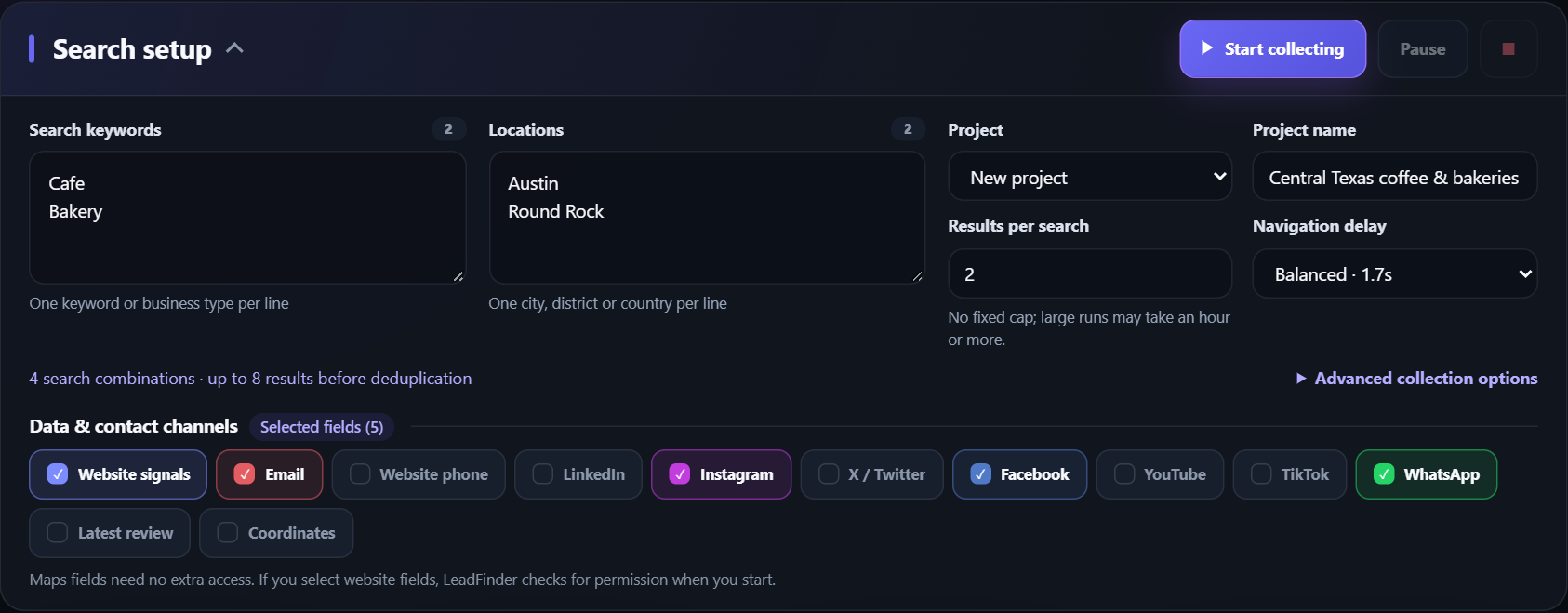
A second keyword or overlapping map view can bring the same location into the same research workflow. Compare the Maps listing and full address before combining rows. Businesses can share a name, website or main phone and still have separate branches. Keep those entries separate when each branch matters, and make it clear which contact route serves which office.
Open the official site for important records. When email is blank but a working contact page is published, record that route in the appropriate field or notes in your working file. Leave uncertain data blank. A shared company mailbox does not establish that each branch can be contacted independently.
Export CSV and inspect it before import
- Open the directory and narrow the view to the batch you want to share. Use your status notes to decide which rows belong.
- Choose the CSV export in LeadFinder and review the export scope. If your workflow exported a broader set than intended, filter and save a separate handoff copy in your spreadsheet.
- Import the file into your spreadsheet with the CSV import dialog. Set phone columns to Text so leading zeroes and country prefixes keep their original form.
- Compare a few rows against their Maps and official website links. Check accented names, empty email cells, and URLs you expect to be clickable.
- Import a small sample into your CRM first. Map columns to existing CRM fields and confirm how it handles duplicates before importing the full file.
Quick example. Two results named “Northside Dental” share a company website. Their addresses and map links are different, so they remain separate in a branch-level prospect list. If your buyer is the corporate office, use one outreach record and keep the branch references in your notes.
Make the handoff easy to audit
Name the file with the market, date and stage, such as austin-dental-reviewed-2026-11-26.csv. Keep the unedited export as a working reference and share the reviewed version with teammates who need it. If the team follows up later, record the revised contact route and status in the project or CRM.
When should I export JSON?
Use CSV when someone needs to filter or review rows in a spreadsheet. JSON is useful when a system expects structured data. Use LeadFinder’s separate project backup when you want to restore the project rather than hand off a list.
Read the LeadFinder export instructions · See how to build the original lead list